How to Control Your Neocities Thumbnail
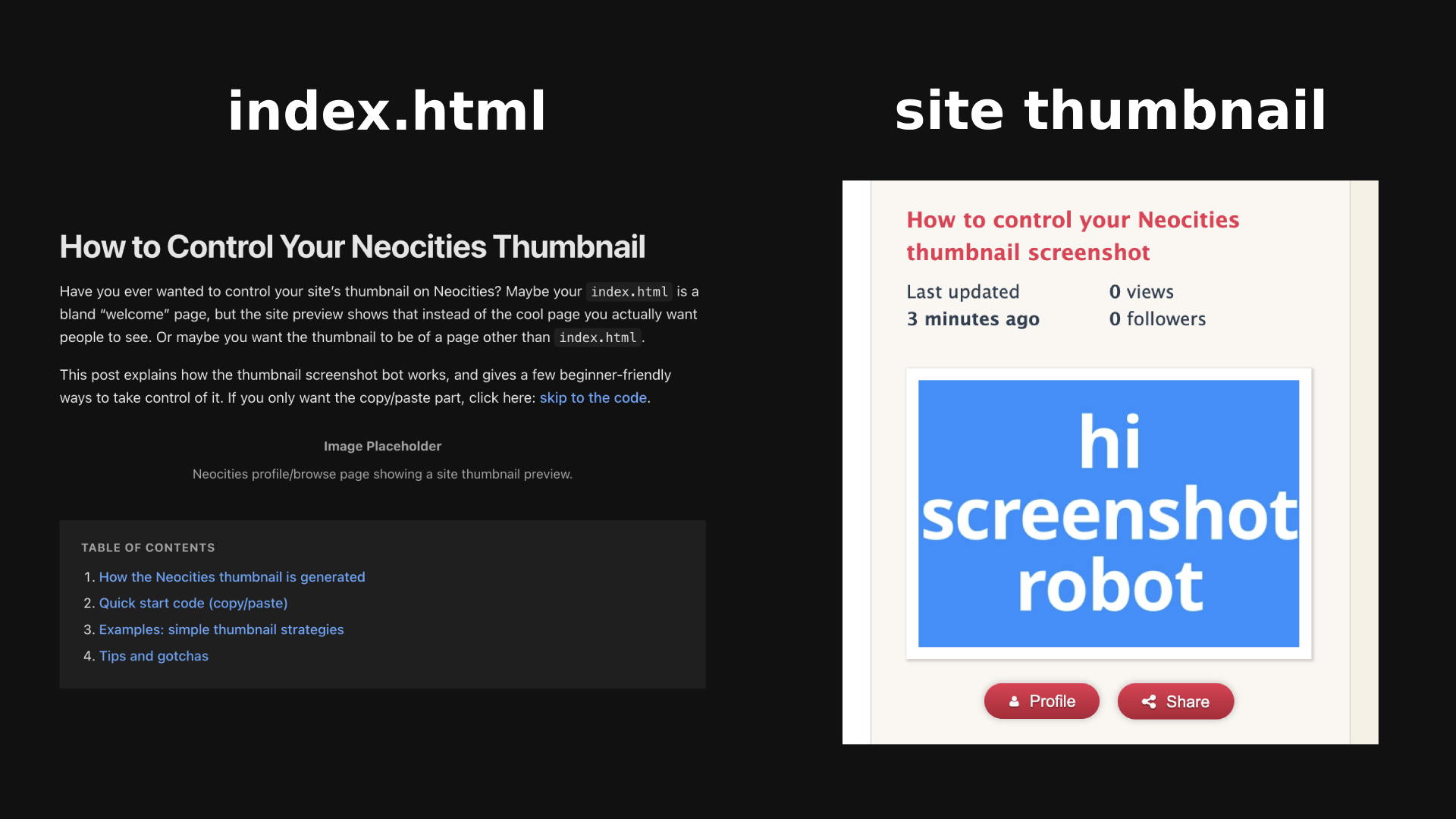
Have you ever wanted to control your site’s thumbnail on Neocities? Maybe your
index.html is a bland “welcome” page, but the site preview shows that instead of the cool
page you actually want people to see. Or maybe you want the thumbnail to be of a page other than
index.html. Perhaps you’d like to use an image as a makeshift profile picture, since
the thumbnail screenshot also becomes your user profile image.
This guide explains how the thumbnail screenshot bot works, and gives a few beginner-friendly ways to take control of it. If you only want the copy/paste part, click here: skip to the code.
How Neocities thumbnails work
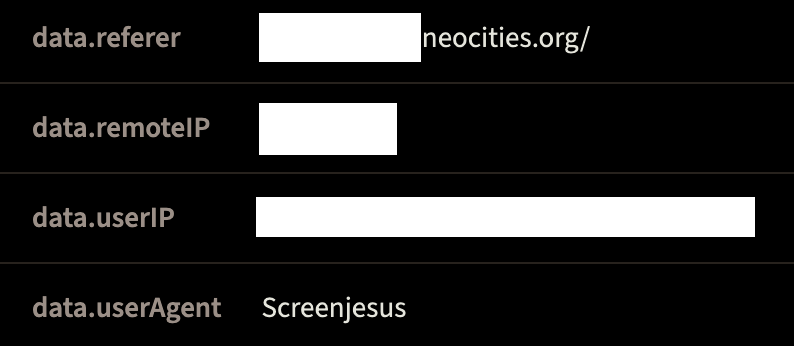
Neocities generates your “site preview” thumbnail by running a screenshot bot (commonly referred to as Screenjesus) that loads your website and takes a screenshot for the preview image. The Neocities backend is open source, which makes it easier to investigate how the platform works under the hood.
Important: The exact timing of when thumbnails update is not guaranteed. In practice, a new screenshot is typically taken in 30 seconds (plus 5 second time out for assets to load) after you update your files, but it can take longer when the service is busy.
The good news: the screenshot bot makes itself known. It uses a special
user agent. A "user agent" is a string that identifies what is visiting a webpage (your browser, a crawler, a
bot, etc.). In JavaScript, you can read the current user agent with
navigator.userAgent.
For ScreenJesus, that user agent is known to be just Screenjesus, which means you can
detect the bot and show it something different than what normal visitors see.
Quick start code (copy/paste)
This is the basic check (the one used by this page) that only triggers for the screenshot bot:
<script>
  if (navigator.userAgent === "Screenjesus") {
    // show bot-only thumbnail content here
  }
</script>
Examples: some thumbnail strategies
1. Redirect the bot to a dedicated thumbnail page
If you want to keep your homepage clean, create /thumbnail.html and send only the bot
there:
<script>
  if (navigator.userAgent === "Screenjesus") {
    location.replace("/thumbnail.html");
  }
</script>
2. Show a pre-made image
If you already have a perfect thumbnail image, show only that image to the bot:
<script>
  if (navigator.userAgent === "Screenjesus") {
    document.body.innerHTML = '<img src="/img/thumb.png" style="width:100vw;height:100vh;object-fit:cover;">';
  }
</script>
3. Replace the page with a thumbnail layout
If the bot is detected, you hide your normal content and show the poster instead.
<!-- 1. Create a container for your thumbnail (hidden by default) -->
<div id="bot-view" style="display:none; background:blue; color:white; height:100vh; text-align:center;">
  <h1>Welcome to my homepage screenshot robot</h1>
</div>

<!-- 2. Wrap your normal website content -->
<div id="normal-view">
  <p>Welcome to my homepage...</p>
</div>

<script>
  if (navigator.userAgent === "Screenjesus") {
    // Hide normal content, show thumbnail content
    document.getElementById("normal-view").style.display = "none";
    document.getElementById("bot-view").style.display = "grid";
  }
</script>
Cropping note: The screenshot shown on the Neocities dashboard can trim a little off the bottom. Designs that are perfectly centered may look slightly off vertically there.
Thanks for reading
If you want to learn more about Screenjesus, check out the community research pages linked below.
References
- Neocities backend source code
- Screenjesus Info (community research)
- Example of finding the Neocities crawler user agent
This thumbnail trick is something I found while making my browser modular DAW on Neocities.
If you like fun interactive musical web apps, you can try it out here!